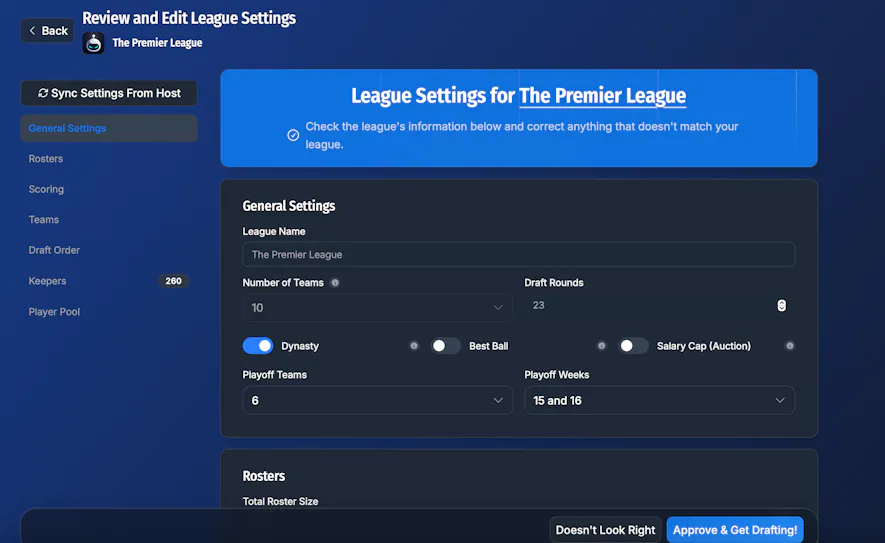
The Draft Dominator allows you to import your fantasy football leagues onto the platform in just a few easy steps. During the import, our software connects to your league's host site and pulls all information and league-specific settings so the Draft Dominator can be customized to your league's exact settings.
Getting Started
First, make sure you are signed into your Footballguys account. If you do not have a Footballguys account, you can create one here. Once you are logged in, head over to the Draft Dominator.
Import Leagues
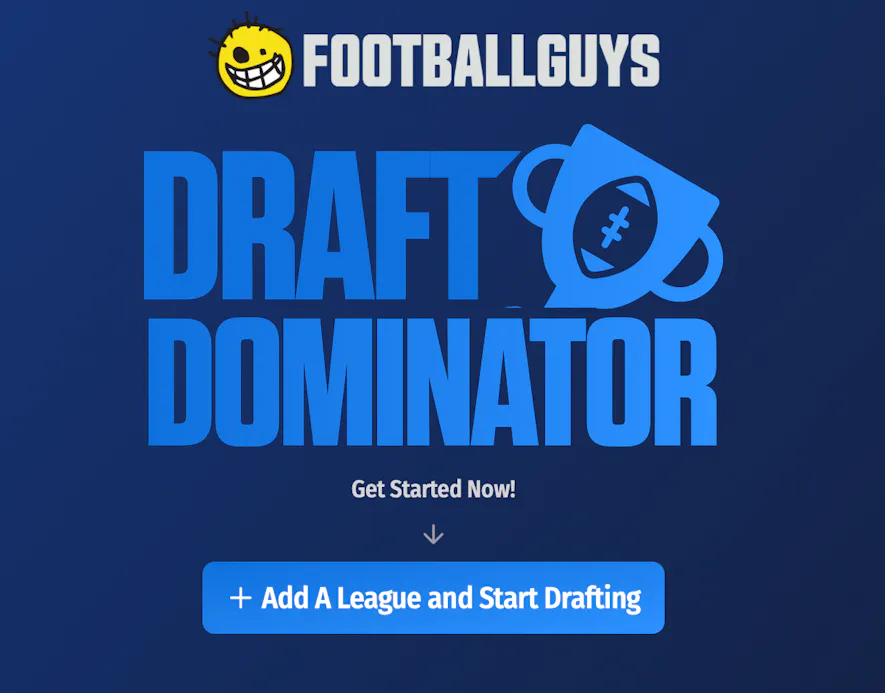
When you arrive at the Draft Dominator, click the "+ Add A League and Start Drafting" button.
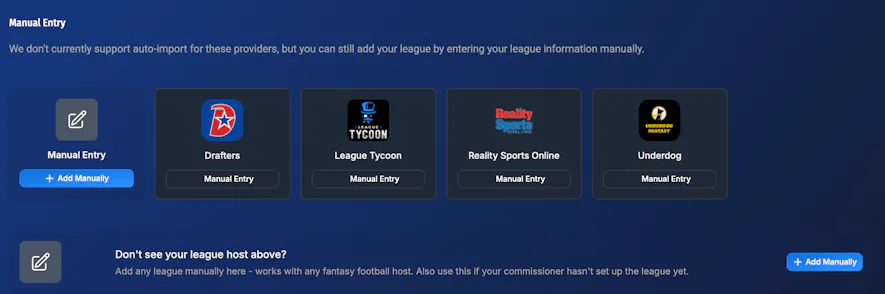
Next, you'll select the league provider that your league uses. If you don't see your league provider or your commissioner hasn't set up your league for the season yet. You can manually import a league from this page.
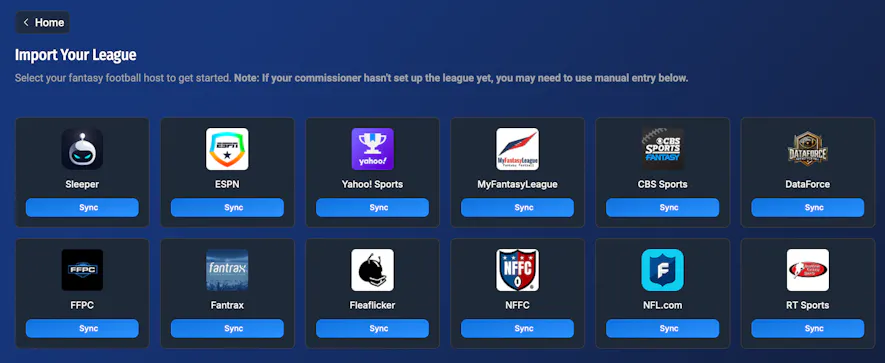
Click the "Sync" button on the league provider your league uses and proceed to follow the instructions to log into your account. (This process varies slightly depending on which league provider you use)
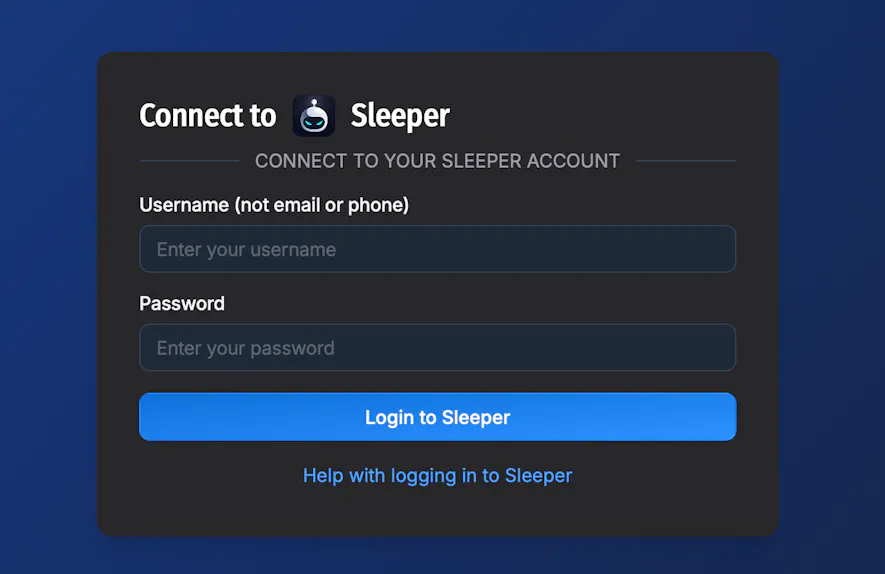
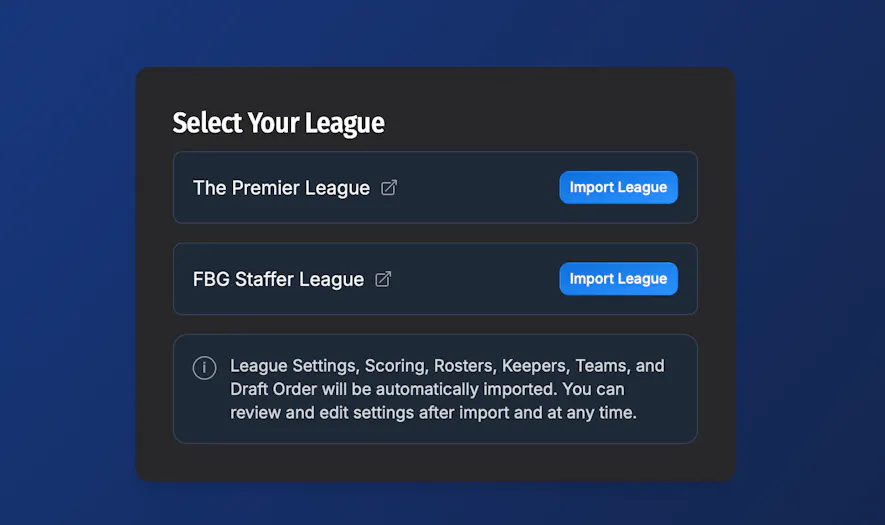
Once you're logged into your league provider, the Draft Dominator will pull the leagues that are active for the season. (If you don't see your league at first, check with your commissioner that they have renewed the league). Click the "Import League" button on the leagues you want to sync.
After clicking "Import League", you'll be taken to your league settings. From here, you'll approve if the Draft Dominator synced your league settings correctly and, if you'd like, make changes to your league's settings. (You can always update these settings later). When you're ready, click "Approve & Get Drafting!"