
Quick Links to the League Dominator User Guide
Savvy waiver wire management can make you a contender. Our Waiver Wire Dominator and Upgrades & Downgrades report provide the insight you need to identify the best free agents for your fantasy team.
Launching Waiver Wire Dominator
From the Footballguys.com home page, choose League Dominator from the dropdown list of Tools.
 |
|---|
That will bring you to the Dominator homepage, where you'll find links to loads of great tools and content, including our 5-Second Primer, Weekly Rankings, Rest of Season Rankings, Trade Dominator, Matchup Dominator, and the subject of this article, Waiver Wire Dominator.
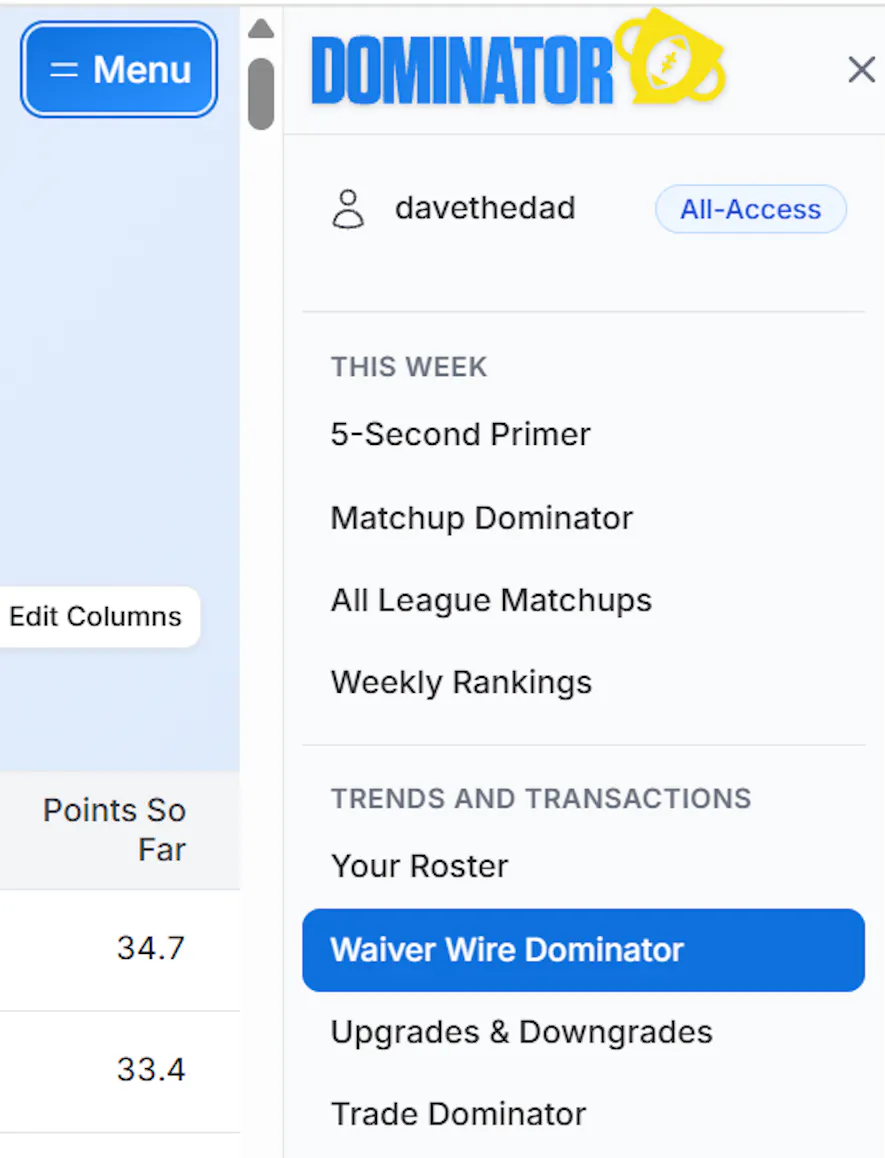
To get started, just click the Menu button, then select Waiver Wire Dominator (in the TRENDS AND TRANSACTIONS section):
 |
|---|
The current Week is selected by default; that's the one we'll be working with.
Select League and Team
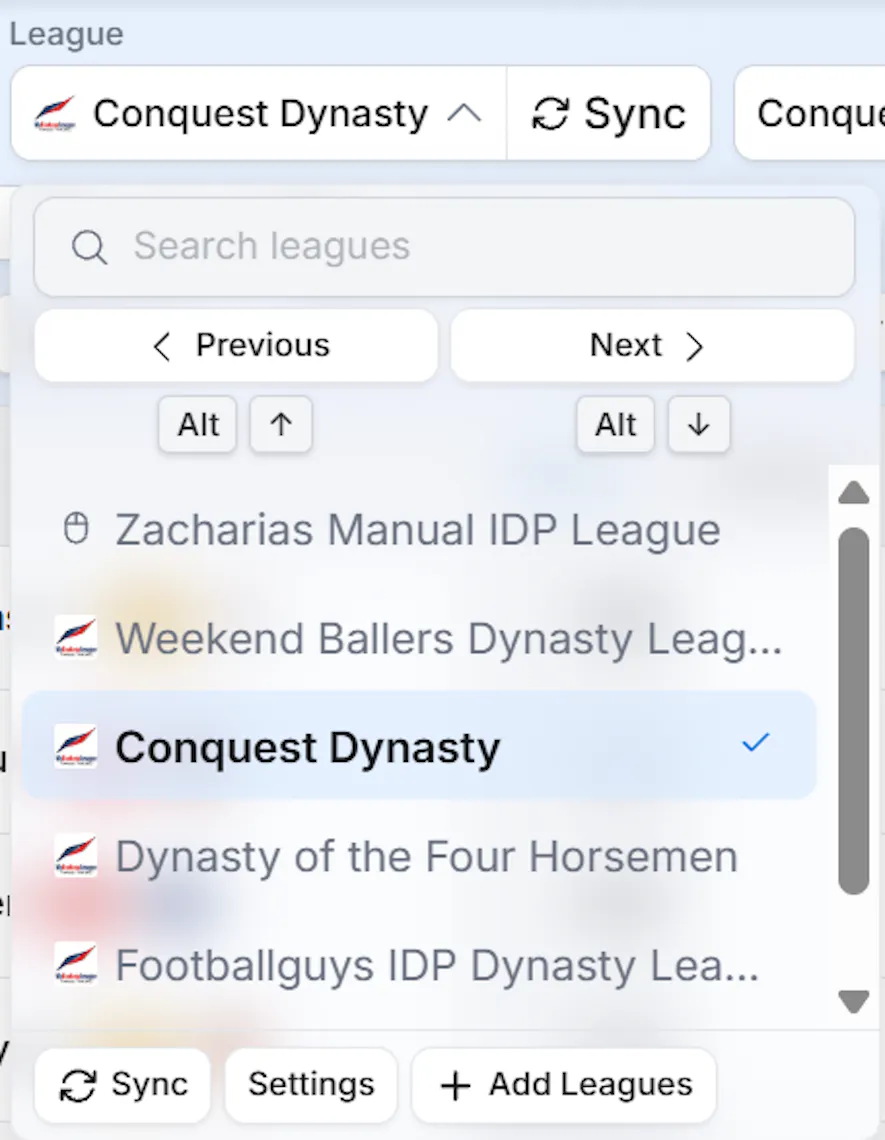
Next, from the dropdown list in the League field, choose the fantasy football league you'd like to work on.
 |
|---|
Click on the Sync button any time you want to be sure you're using your latest roster and our latest projections.
Your team is already selected by default (though you can change it if you want to see the best Free Agents for someone else's team).
Fantasy Free Agents
Initially, all available fantasy Free Agents are presented. But you can narrow down the list in three ways:
1. Limit to a single position/position grouping
2. Search for a certain player
3. Only show FAs on a specific NFL team, with options to include or exclude players tagged as Out or IR
 |
|---|
Information You Can See About Each Free Agent
Player Data
Waiver Wire Dominator shows each Free Agent's photo, name, position, and NFL team logo.
 |
Score Factor and Player Projections
Associated with each Free Agent are five factors that can influence your decision to pick him up this week:
Outlook - This player's change in value in the past week, as shown in our Upgrades and Downgrades report.
Pts+ - How much this player might help your lineup in future weeks.
Bench+ - How much this player increases your bench strength and upside in future weeks.
This Week+ - How much this player might help your lineup this week.
Opponent+ - How much this player might help your opponent's lineup this week.
These five factors are blended into a composite Score, which is a relative measure of how much value this player would bring to your team, on a scale of 0.00 (none) to 1.00 (maximum).
 |
Use Score and following information about each player to help you prioritize your Waiver Wire targets:
Start? - Remaining weeks this player would start on your team if you added them.
This Week - Projected fantasy points this week.
Bye - This player's NFL bye week composite
Games - Remaining regular season games.
RoS Pts - Projected Rest-of-Season fantasy points.
Points So Far - Fantasy points scored so far this season.
RoS PPG - Projected Rest-of-Season points per remaining game.
Advanced Topics
Once you're familiar with the basic method of scouring the waiver wire for your best free-agent options, you may want to explore additional Waiver Wire Dominator features that can further inform your decision-making.
Weighted Score
Waiver Wire Dominator lets you adjust the blend of the five factors used to calculate each player's Score. By default, every factor's weight is 1.0 except Opponent+ (which is 0.0). You can adjust each factor's weight anywhere from 0.0 to 2.0 by clicking the factor's down arrow.
Here is an example of giving double weight (2x) to the This Week+ factor.
 |
Note that when one factor's weight is changed, the "Reset to Default" button is activated.
Edit Columns
The Edit Columns button will pop up a window that allows you to choose which player information will be visible for each listed player.
Several columns (e.g., Score, Outlook, etc.) are always displayed, but you can include or exclude any of the others. You also have the option to include or exclude player headshots.
 |
You can exit from the Customize Columns screen by either clicking the Save Changes button, closing the pop-up window, or choosing to "Reset to Defaults".
Upgrades & Downgrades Report
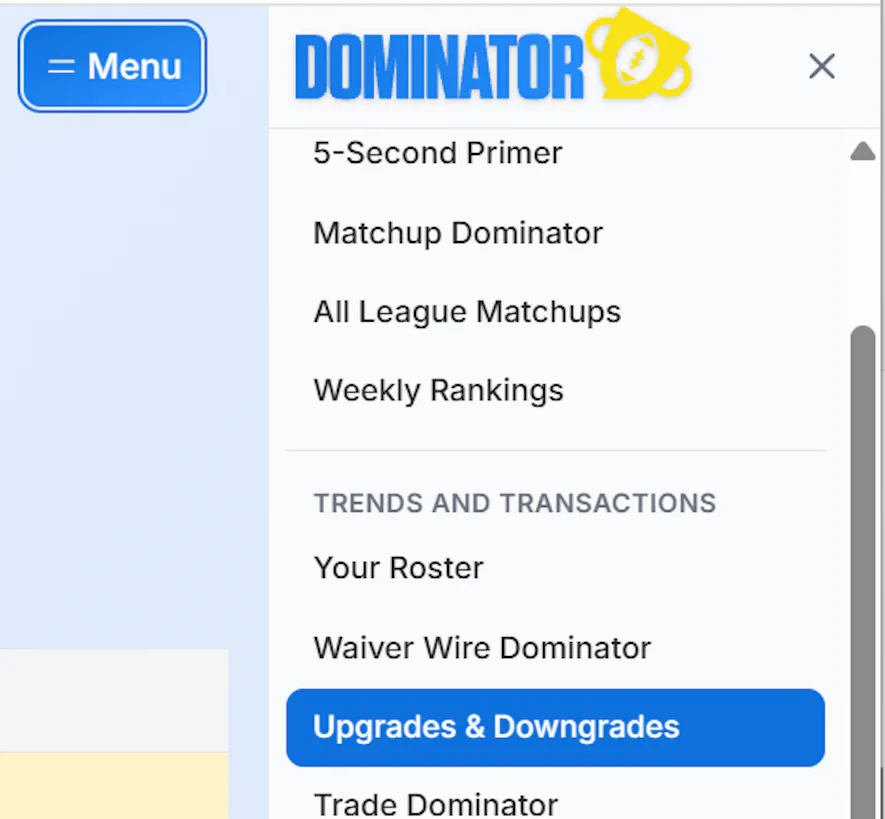
Further down in the TRENDS AND TRANSACTIONS section of the Menu, you can select the Upgrades & Downgrades report.
 |
In this report, the Week, League, Sync button, Position selector, and Player Search selector all work the same as in the Waiver Wire Dominator. But there are two additional filters you can apply to narrow down your players of interest.
The first filter is the Show dropdown. You can choose to see either All Players in the Upgrades & Downgrades report, or only those players selected in the Highlight dropdown (Highlighted Only).
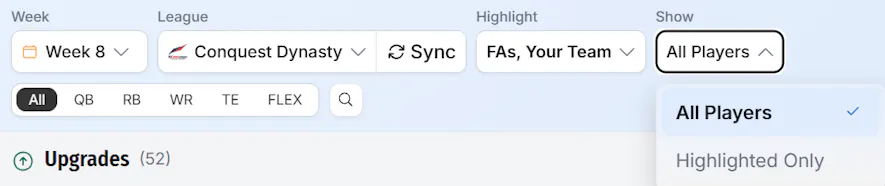 |
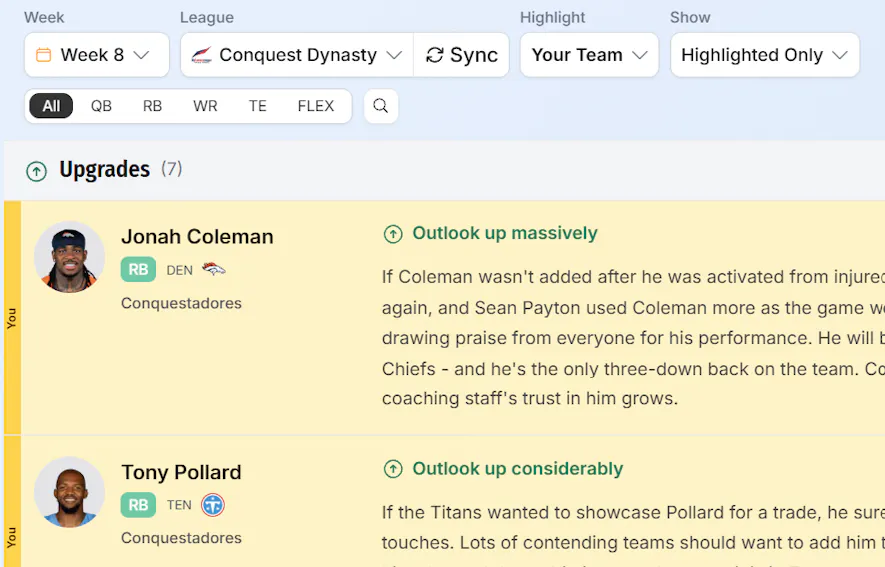
Next is the Highlight dropdown. You get to select any combination of fantasy Free Agents and teams in your League. If, for example, you wanted to see the Upgrades & Downgrades report for your players only, you would select Highlighted Only in the Show field, and Your Team in the Highlight dropdown
 |
If you wanted to see the Upgrades & Downgrades report for your league's Free Agents, you would change the Highlight dropdown to FAs. The Upgrades portion of the report identifies those Free Agents in your league that you might consider adding to your roster.
 |
Final Words
The waiver wire can be a great source of talent to boost your chances of victory. Use Waiver Wire Dominator and the Upgrades & Downgrades report to find the Free Agents best suited to your fantasy team's needs. You'll like that!
